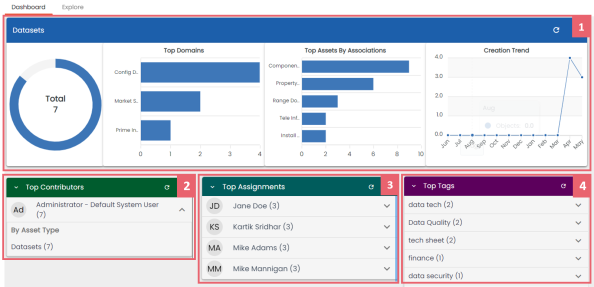
The Data Marketplace Dashboard displays insights about your marketplace assets across your organization. It helps you analyze marketplace assets based on creation trends, associations, and domains. You can also configure the dashboard to display insights of your favorite marketplace assets.
To access the dashboard, go to Application Menu > Data Marketplace > Dashboard.
The Data Marketplace Dashboard appears.
|
UI Section |
Function |
|---|---|
|
Displays insights about all marketplace assets and their associations. |
|
|
Displays top contributors in your organization based on asset types. |
|
|
Displays a list of users with most responsibilities based on data governance responsibilities and asset types. |
|
|
4-Top Tags |
Displays a list of most used tags. |
For each asset type in your ecosystem, the <Marketplace Asset> section displays the total number of assets and associations on asset type-specific cards.
For example, the following screenshot displays insights about datasets.
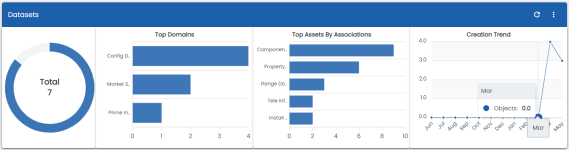
These cards display the following information:
- Top Domains: By default, it displays the top five domains (catalogs) with most number of marketplace assets.
- Top Assets By Associations: By default, it displays the top five assets with most number of associations.
- Creation Trend: It displays the month-wise asset creation trend.
You can drill down to view detailed information of the marketplace assets.
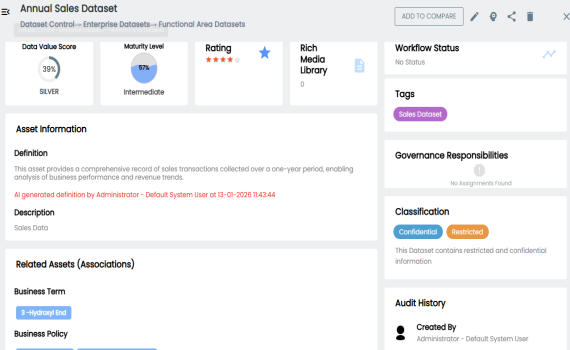
To view detailed information of a marketplace asset or its association, click the chart on the card. Now, each associated asset is clickable. Clicking on any of these assets takes you to the specific asset's page.
The Top Contributors card displays the list of top contributors in your organization based on the number of marketplace assets assigned.
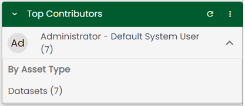
To view a contributor's list of assets based on the asset type, click  .
.
The Top Assignments card displays a list of users with the most assigned responsibilities based on data governance responsibilities for the asset type.
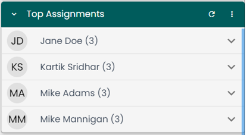
To view the top responsibilities list of assets based on the asset type, click .
The Top Tags card displays the most used tags based on the marketplace assets.
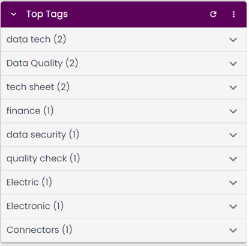
To view the list of top tags, click .
This displays the list of tags based on asset type.
You can also manage and customize the Data Marketplace Dashboard using the following options:
 )
)Use this option to refresh the data on the cards.
 )
)Use this option to change the asset type and number of records displayed on the card. Click  , and use the following options:
- Change Asset: Use this option to change the asset types on a card.
- Records: Use this option to set the number of records displayed on a card.
- Background: Use this option to change the card's background color. This option is not available for <Marketplace Asset> cards.